
Hyper key
Holding Caps Lock stamps a modifier set onto the next key — and the Globe key can be a modifier too.
Hold Caps Lock and Lumi stamps a modifier set — any combination of Control, Shift, Command and Option — onto whatever you press next. It turns one of the largest, least-used keys on the keyboard into a modifier nothing else on the system claims, so combinations built on it never collide with an application's own shortcuts.
It is on by default, because it is the reason the app exists, and quitting Lumi always puts Caps Lock back to normal.
Needs the Accessibility permission — it reads Caps Lock and synthesises the modifiers.
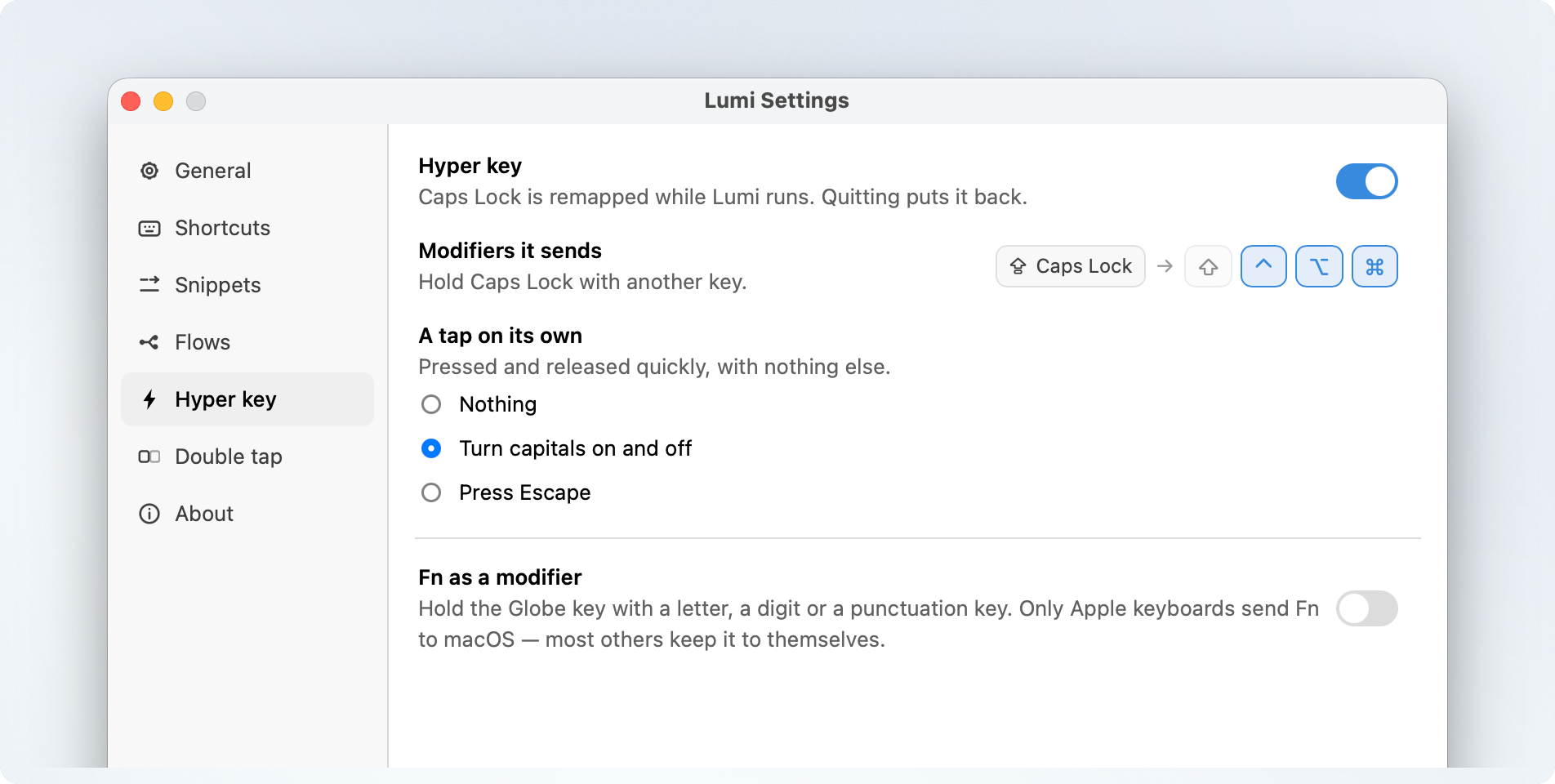
The modifier set
Pick any of ⇧ ⌃ ⌥ ⌘ in the Hyper pane. The default is ⌃⌥⌘ — Control, Option and Command, no Shift.
Three reasons for that particular three:
- Together they are a modifier combination almost no application binds on its
own, so
Caps Lock+ a letter is a private namespace. - Leaving Shift out keeps Shift available on top of the Hyper set, so
Caps Lock+ ⇧ + a key is still a distinct combination you can bind. - It is the chord Lumi's own hidden gestures use, so the muscle memory carries.
Whatever set you choose, a Hyper combination is bound in the Shortcuts pane like any other: record the trigger by holding Caps Lock and pressing the key.
Tapping Caps Lock
A hold is the Hyper key. A tap — pressed and released with nothing else — is a separate choice:
| Choice | What a tap does |
|---|---|
| Turn capitals on and off (default) | Caps Lock, the way the key is labelled. Gives back what remapping the hold took. |
| Press Escape | Suits a keyboard where Caps Lock sits where Control used to. |
| Nothing | Hold-only. A tap is inert. |
Fn as a modifier
The Hyper pane carries a second switch that has nothing to do with Caps Lock: Fn as a modifier. With it on, holding the Globe key with a letter, a digit or a punctuation key is a combination you can bind in Shortcuts.
It is worth having for the same reason the Hyper key is: nothing is typed with
Fn held — Fn+K produces a plain k — so claiming the combination takes
nothing away from anything else.
Two limits, and both are macOS's rather than Lumi's:
- Only Apple keyboards send Fn to macOS. Most third-party boards keep the key to themselves, so nothing arrives to match against.
- The function row and the navigation cluster are out.
F1–F20, the arrows, Home, End, Page Up, Page Down, Delete, Insert and Help all mean something to macOS before Lumi can see them, so binding one would stop working without warning. The sheet refuses those and says so; letters, digits and punctuation are fine.
macOS never registers an Fn combination for an application, so Lumi matches these itself on the way past. That is why Test is greyed out for one — there is no OS claim to make, so nothing another app could be holding.
When no Fn shortcut fires
Two settings outside Lumi can silence the whole feature, and the pane says so when it finds them:
- The Globe key is remapped. Then Lumi never sees it. Put it back under System Settings → Keyboard → Keyboard Shortcuts… → Modifier Keys.
- The Globe key does something on its own — changes the input source, opens the emoji picker, or starts dictation. Holding it with another key is unaffected, so your shortcuts still work; if the solo press is in the way, set it to Do Nothing under System Settings → Keyboard.
Like everything that reads the keyboard, this needs the Accessibility permission.
Getting the plain Caps Lock back
Two ways, depending on how complete you want the reversal:
- Leave the tap on "Turn capitals on and off." The hold is Hyper, a tap is still Caps Lock. This is the default and covers most people.
- Turn the Hyper key off in the Hyper pane. Caps Lock is entirely itself again.
- Quit Lumi. Caps Lock is restored on every quit, so nothing you do here is one-way.
macOS's own System Settings → Keyboard → Keyboard Shortcuts… → Modifier Keys remapping is separate from Lumi and unaffected either way.